Strategy Hub
The Strategy Hub is your home base — the library where every imported strategy lives. From here you organize your collection and jump into any analysis tool with the right strategy pre-selected.
Where to find it: In the app sidebar, open Strategy Hub → Library. New strategies are added via Strategy Hub → Add Strategies (see the Import Guide).
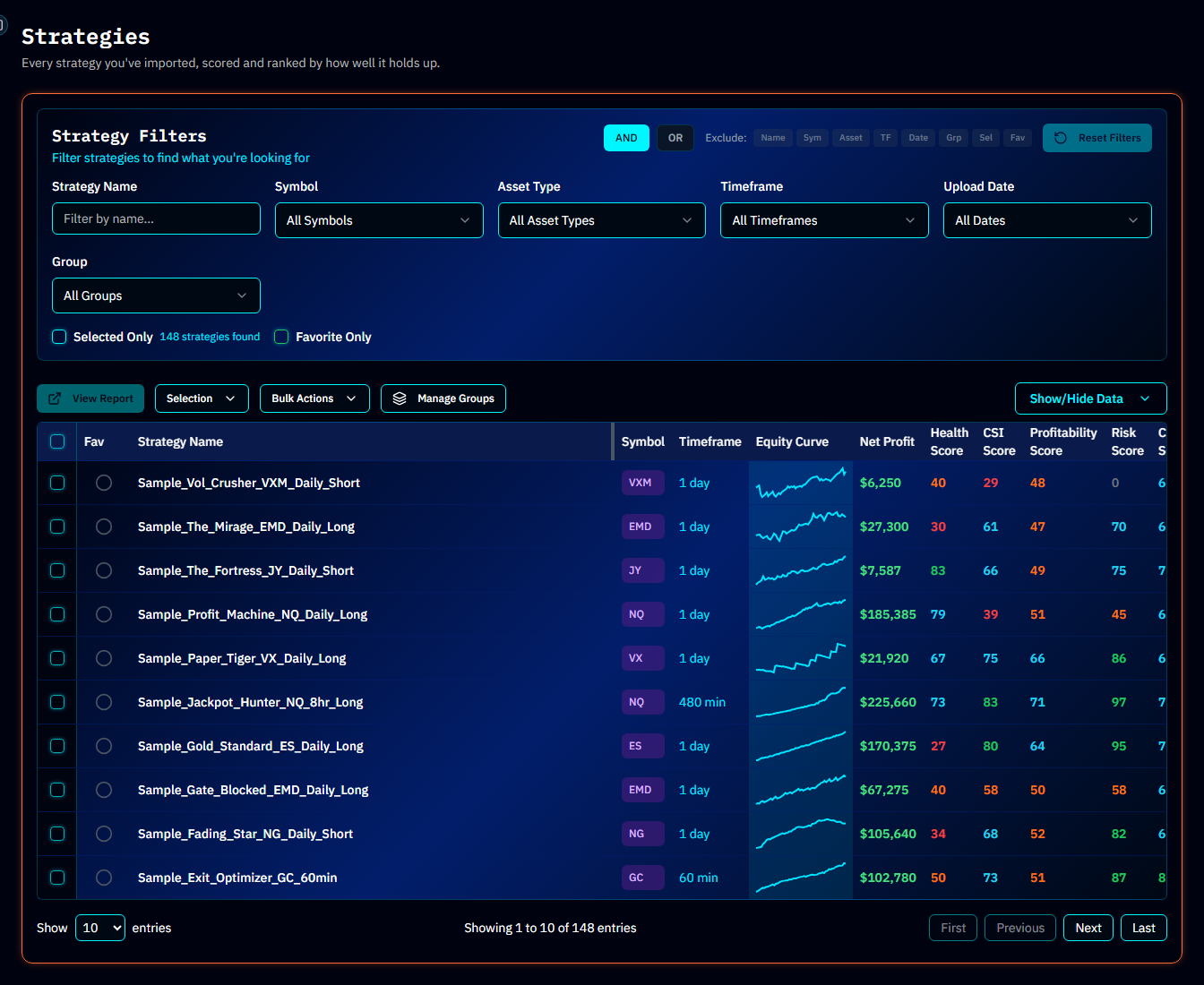
The Strategy Table
Each row is one strategy, with sortable columns including CSI, Health, Profitability, Risk, Confidence, net profit, trade count, date uploaded, symbol, and timeframe. An inline equity sparkline gives you a quick visual read of each strategy's curve.
- Sort by clicking any column header — sorting by CSI is the fastest way to rank your library by overall quality.
- Choose columns with the column picker — show only the metrics you care about. Your selection is remembered.
- Page size is also remembered between visits.
- Double-click a row to open that strategy's full Quality Report.
Finding Strategies: Search & Filters
The filter bar lets you narrow large libraries quickly:
- Text search on strategy name
- Symbol, asset type, and timeframe filters
- Date range filters
- Favorites filter — show only starred strategies
- Groups filter — show only strategies in selected groups
- AND/OR filter mode — require all filters to match (AND) or any of them (OR)
Select Filtered (N) selects exactly the rows currently matching your filters — useful for bulk actions on a filtered subset.
Groups & Favorites
Two ways to organize:
- Favorites — star individual strategies for quick access. Add or remove stars in bulk via Bulk Actions.
- Groups — named collections (e.g. "Live candidates", "NQ strategies", "Needs more data"). Click Manage Groups to create, rename, recolor, or delete groups. A strategy can belong to multiple groups.
Bulk Actions
Select one or more strategies (checkboxes, Select All, or Select Filtered), then open the Bulk Actions (N) menu:
| Action | What it does |
|---|---|
| Refresh | Reloads the selected rows from the database |
| Rename | Bulk-renames the selected strategies with a common prefix |
| Recalculate | Recomputes all metrics — including the Health Score — from the stored trades, with the starting capital you set. Use after an app update introduces new metrics, or if a strategy shows stale numbers |
| Add to Favorites / Remove from Favorites | Bulk star / unstar |
| Add to Group / Remove from Group | Bulk group membership |
| Head-to-Head | Sends the selected strategies straight into Head-to-Head comparison |
| Delete (N) | Permanently deletes the selected strategies and their trades. A confirmation dialog protects against accidents — deletion cannot be undone |
Per-Strategy Menu
Each row has an actions menu (⋯) that deep-links into every analysis tool:
| Menu item | Where it takes you |
|---|---|
| View SA | The strategy's full Quality Report (Strategy Analyzer) |
| View HM | Health Monitor with this strategy loaded |
| View MC | Monte Carlo Robustness Test with this strategy selected |
| View BM | Strategy vs Benchmark with this strategy selected |
| Copy strategy ID | Copies the internal ID (useful when reporting a bug) |
| Edit Strategy | Opens the trade-level spreadsheet editor to correct individual trades |
| Delete | Deletes this one strategy |
Sample Strategies
New accounts come pre-loaded with sample strategies so you can explore every feature before importing your own data. Samples are marked Sample · read-only — you can analyze them everywhere, but you can't edit or rename them. You can delete them, and a Restore samples button brings the whole set back if you change your mind. Once you import your own strategies, the samples simply sit alongside them.
Common Questions
Why do some strategies show "Insufficient Data" instead of scores? Scores require a minimum number of trades to be statistically meaningful. Import more history, or see the Confidence Score page for why this requirement exists.
When should I use Recalculate? After the platform ships new or improved metrics, or if you edited trades with the spreadsheet editor and want everything recomputed.
Does Recalculate change my starting capital? No. Recalculate always uses the starting capital you set when you imported the strategy (or last changed in the editor). Only a strategy with no starting capital at all gets the import default, two times the instrument's overnight margin rounded up to the next $1,000.
Is there a limit on how many strategies I can store? Limits depend on your plan — see your Subscription page for current usage and limits.
Tip
Treat the Hub as your funnel: import widely, rank by CSI, group the promising ones, and put only the best through Monte Carlo and the Health Monitor.