Portfolios Hub
The Portfolios Hub is where portfolios are born. You pick strategies, choose how capital should be split among them, and save the result as a portfolio you can then analyze, size, and stress-test in Portfolio Studio.
Where to find it: In the app sidebar, open Portfolios Hub. It has three pages:
| Page | Purpose |
|---|---|
| Compose | Build a new portfolio — pick it yourself, or let AlgoChef build it |
| Portfolio Candidates | Review results produced by the composition engines and save the best |
| Library | Manage your saved portfolios and open them in Portfolio Studio |
Why build portfolios at all?
Individually good strategies can be collectively bad (all losing at the same time), and individually mediocre strategies can be collectively excellent (losses offsetting each other). Portfolio construction is about correlation — combining strategies whose drawdowns don't line up. That's why every build mode here goes beyond simply adding equity curves together.
Compose: two ways to build
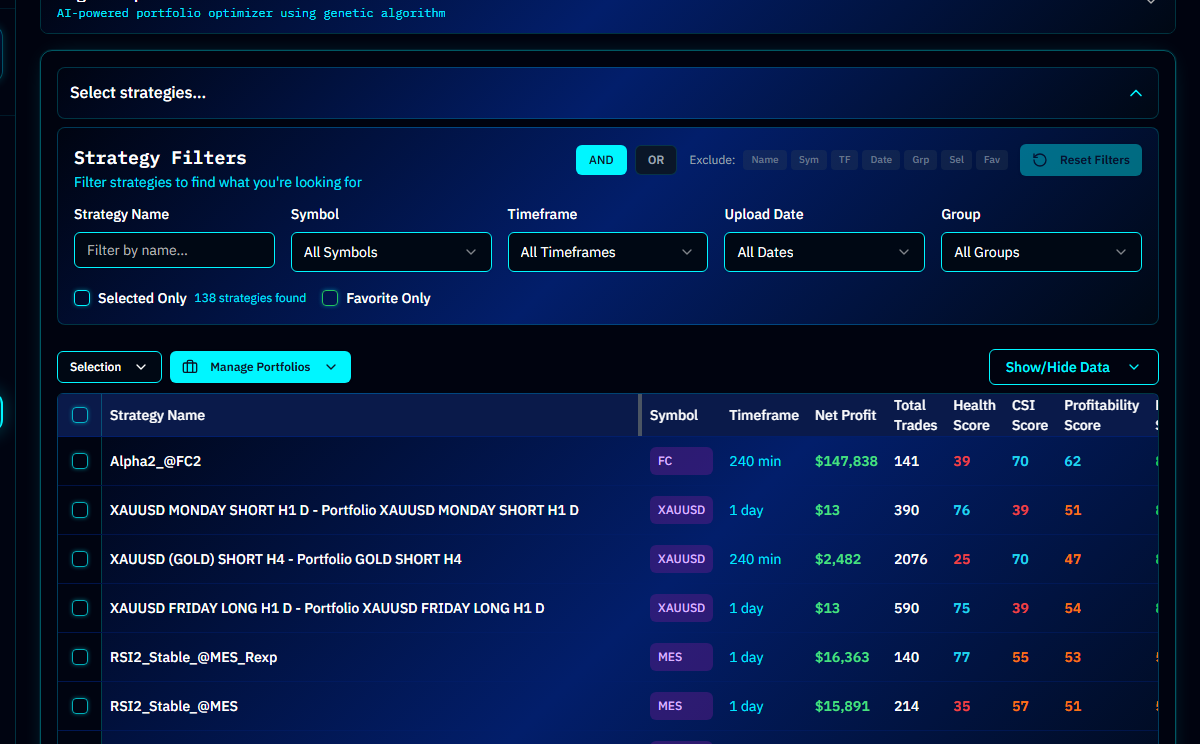
At the top of the Compose page is a strategy picker (collapsed by default) where you select the strategies to build from. Below it, a launcher offers two doors: Pick it yourself, or Let AlgoChef build it.
The launcher uses plain names. Some screens, messages and older guides still use the engine names behind them, so both are given in brackets below:
| In the launcher | Engine name |
|---|---|
| Pick it yourself | Manual |
| Let AlgoChef build it · Fast | Quick Build |
| Let AlgoChef build it · Thorough | Stability Composition |
| Let AlgoChef build it · Compare recipes (under Advanced) | Bake-Off |
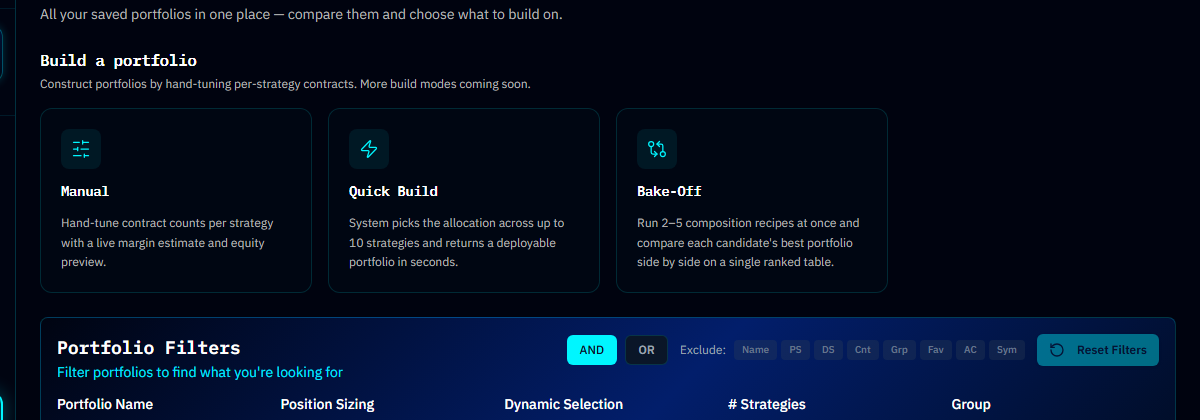
Pick it yourself [Manual]
Choose the strategies and set how many contracts of each. Works with up to 100 strategies.
Full control. You set each strategy's size directly, and the panel shows a live Portfolio Summary, Contract Allocation (whole contracts per strategy), and Equity Curve Preview as you adjust. Use this when you already have a thesis about how the strategies should be combined and want to implement it exactly.
Let AlgoChef build it
Choose your strategies and let AlgoChef work out the mix. Inside this door: Fast, Thorough, and Compare recipes behind an Advanced disclosure.
Fast [Quick Build]
Answer a few questions and let AlgoChef suggest a starting allocation.
The fastest path from strategies to portfolio. Set your portfolio name and capital, then pick an allocation approach:
- Auto (suggested) — AlgoChef inspects your strategy set and picks the best-fitting bundle
- Equal Risk — every strategy contributes the same volatility to the portfolio
- Diversified — spreads risk across strategies that move differently; strategies that move together share a slice
- Edge-Weighted — bigger allocations to strategies with stronger statistical edges
Fast works with up to 10 strategies (a Pick random 10 button can sample from your filtered pool). Results show a Portfolio Confidence indicator, the Strategy Allocation, and an Equity Curve Preview before you save. The most any one strategy can take depends on how many you pick (from 100% with 2 down to 25% with 8 or more), and a strategy raised to the smallest tradeable size is marked Minimum size. See How sizing uses correlation.
Thorough [Stability Composition]
A correlation-aware allocator matched to your universe, producing ranked robust candidates.
Routes your strategies through a single allocator chosen to match your strategy universe, then ranks the most robust candidate portfolios it finds. Reach for this when you want a dependable, hands-off composition — the engine does the work and hands you a ranked list on the Portfolio Candidates page.
Advanced
One more choice sits behind an Advanced disclosure, for when you want to weigh different setups against each other:
Compare recipes [Bake-Off]
Compare multiple candidate portfolios head-to-head before committing.
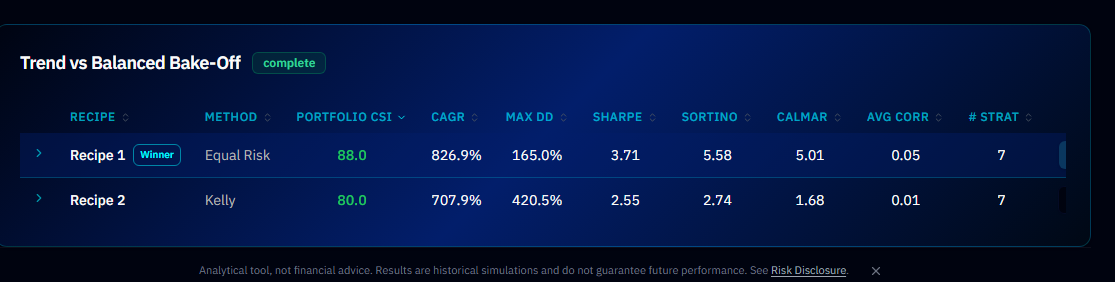
Set up 2–5 "recipes" — each with its own strategy picker and settings — and run them against each other. The comparison shows how each recipe would have performed so you can commit to the winner with evidence rather than intuition.
Long-running compositions and bake-offs continue in the background — you'll get an in-app notification when the job completes, so you don't have to keep the page open.
Portfolio Candidates
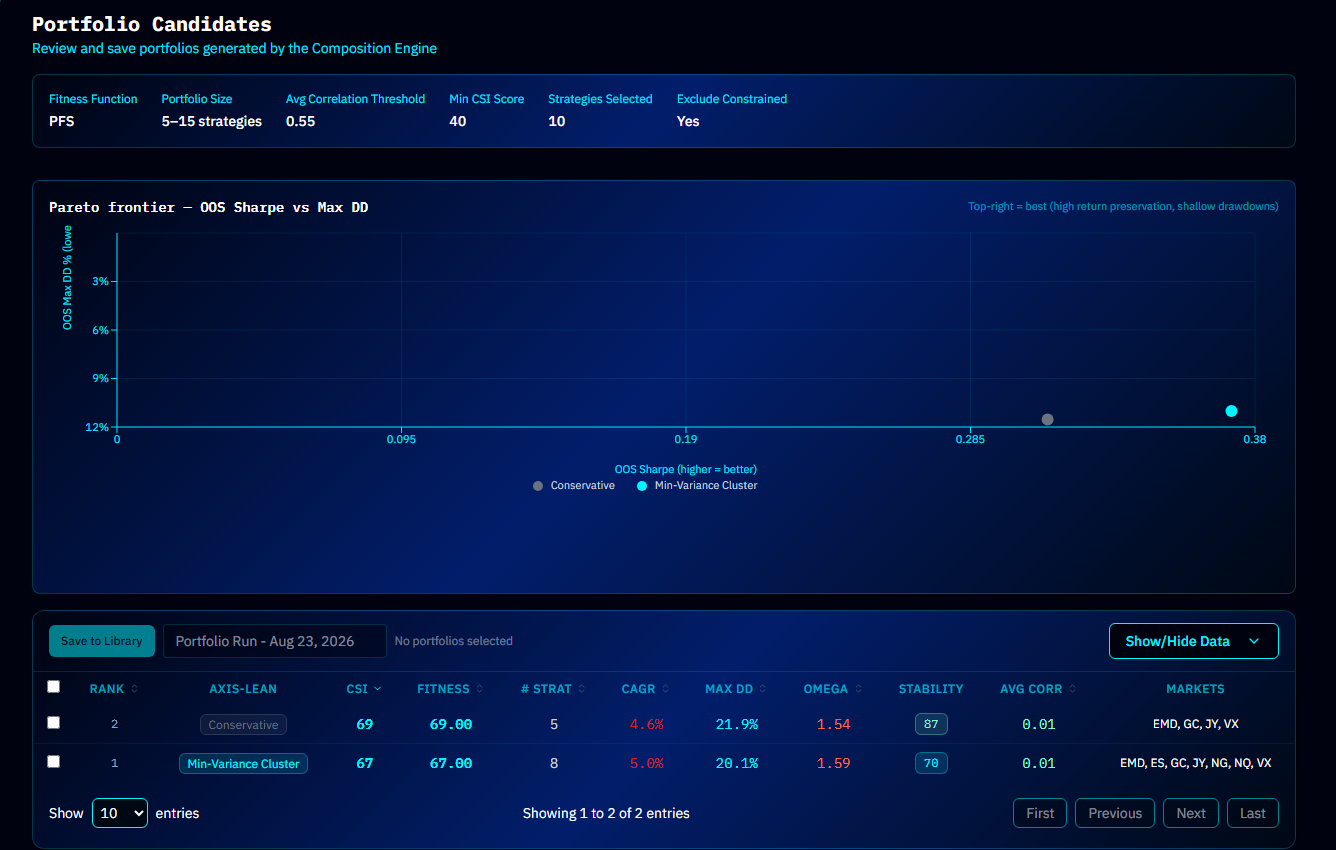
When a Thorough (Stability Composition) run finishes, its results land here:
- A frontier visualization plots every candidate by risk and return, so you can see the trade-off space at a glance
- The candidate table lists each candidate's metrics — return, drawdown, allocation summary, and quality scores
- Save to Library (per candidate or in bulk) turns a candidate into a real portfolio
Tip
Don't automatically pick the candidate with the highest return. Candidates near the "knee" of the frontier — good return with disproportionately low risk — are usually the ones you can actually live with through a drawdown.
Library
Every saved portfolio lives in the Library. From each row's menu you can open it in Portfolio Studio for deep analysis, capital-split comparison and robustness testing, or rename, duplicate, mark as a favorite or delete it. Duplicate asks for a new name and copies the strategies and their sizes; re-run any simulations on the copy. Select several rows to rename or delete them in one go; bulk delete asks you to confirm first.
New accounts get an Example · read-only portfolio built from the sample strategies. You can open and analyze it like any other, but you can't rename, resize or delete it. Use Duplicate to get an ordinary copy you can edit.
Common Questions
What's the difference between a strategy and a portfolio? A strategy is one system's trades. A portfolio is a weighted combination of several strategies traded together from shared capital.
Can a portfolio contain the same strategy twice? No — each strategy appears once, with an allocation determining its size.
Do I have to use an engine? Can I just combine strategies myself? Use Manual — that's exactly what it's for.
What happens to a portfolio if I delete one of its strategies? Deleting a strategy removes it from every portfolio that contains it, and those portfolios then recalculate with the members that remain. You are told before anything is deleted: the delete dialog (single or bulk) checks which of your portfolios use the strategy, names them, says they will be recalculated without it, and warns you if any would be left with fewer than 2 strategies (those show no results until you add strategies back).
Tip
After saving a portfolio, head to Portfolio Studio — the Analyze tab shows you what you built, Allocate compares capital-split methods, and Robustness tells you how much capital it takes to trade it safely.