Your First Portfolio
Individually good strategies can be collectively bad — all drawing down at the same time. Individually mediocre strategies can be collectively excellent — losses offsetting each other. Combining strategies well is about correlation, and it's where AlgoChef earns its keep. This lesson builds your first portfolio the easy way.
Tip
Day-one advice, stated bluntly: open Let AlgoChef build it → Fast and use the Auto (suggested) method, and ignore every other build option until you have a saved portfolio you understand. Manual, Thorough, and the Advanced options are all covered in the Portfolios Hub reference — they'll still be there tomorrow.
Step 1: Open Compose and choose Let AlgoChef build it → Fast
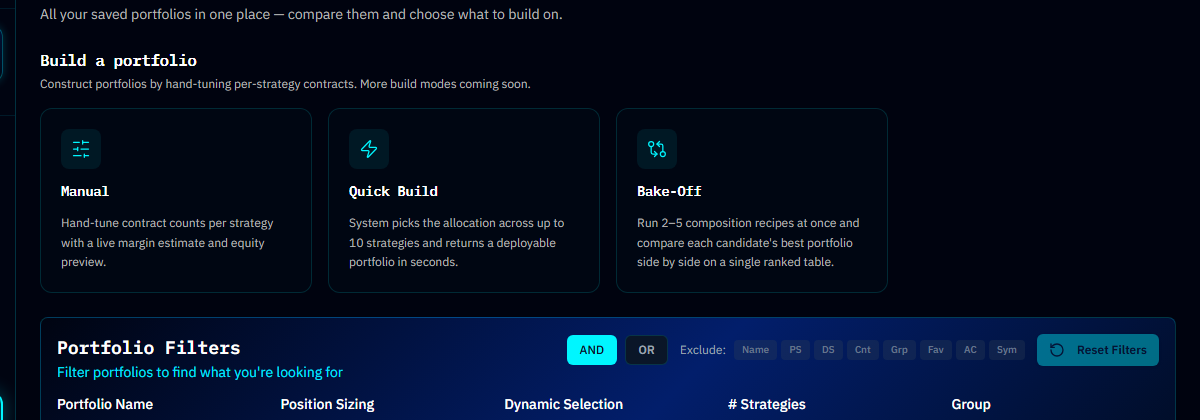
From the app sidebar, open Portfolios Hub → Compose. You'll see a launcher with two doors — choose Let AlgoChef build it, then Fast (Quick Build).
Step 2: Select strategies
Use the strategy picker to select up to 10 strategies. For a first run, 4–6 samples work well — deliberately mix characters (a couple of strong ones, something choppy). There's even a Pick random 10 button if you want the engine to surprise you.
What makes a good portfolio ingredient is not just a high CSI — it's contributing something the others don't. A mediocre strategy that's uncorrelated with your best one can improve the combination.
Step 3: Configure and build
In the Portfolio Configuration card:
- Portfolio name and Total starting capital (USD)
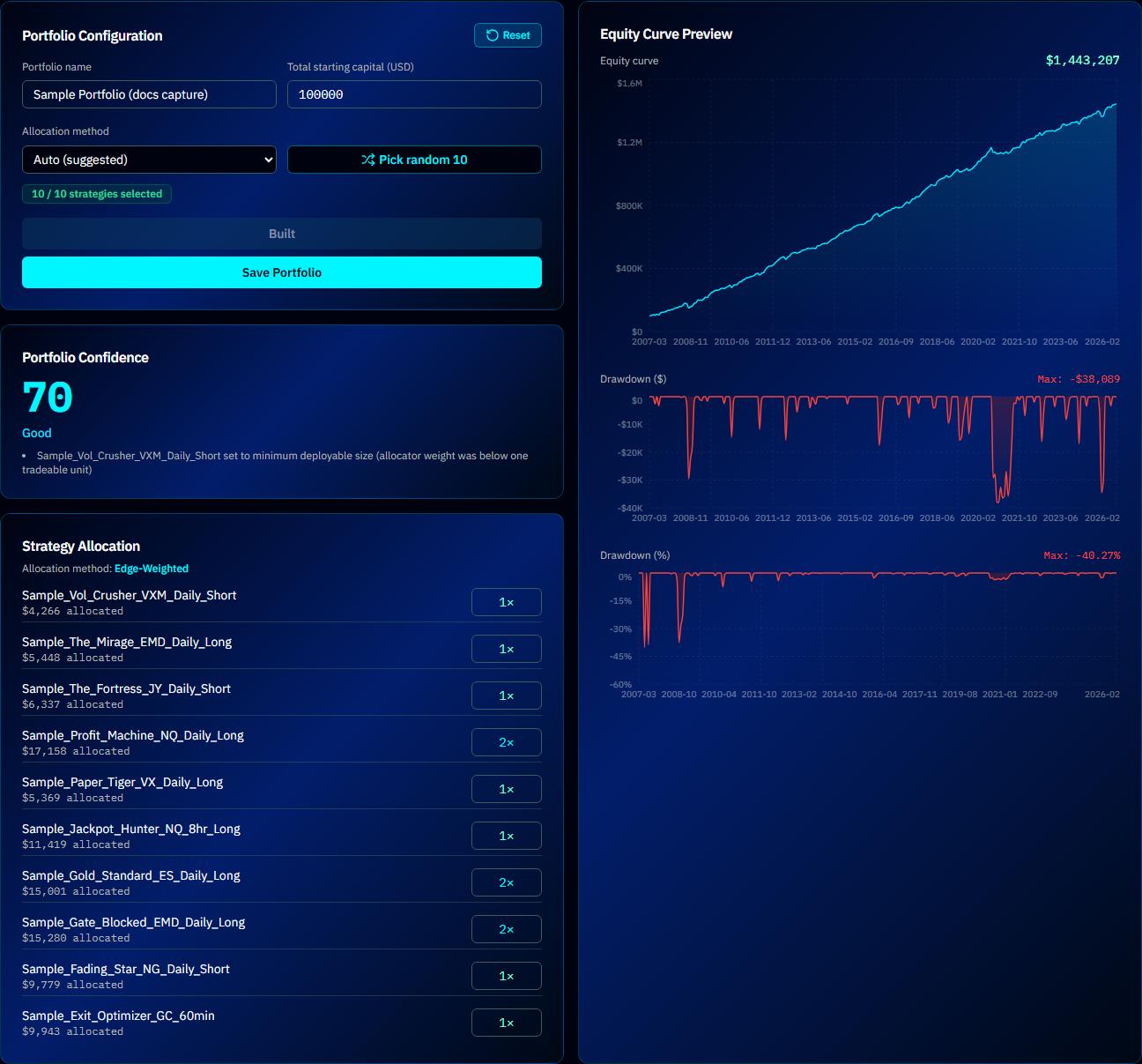
- Allocation method — pick Auto (suggested): AlgoChef inspects your strategy set and chooses the best-fitting approach. (The other options — Equal Risk, Diversified, Edge-Weighted — are explained in Allocation Methods.)
Click Build Portfolio. In seconds you get the Strategy Allocation, a Portfolio Confidence indicator, and an Equity Curve Preview.
Step 4: Look at what diversification did
Before saving, study the preview against what you know about the ingredients:
- The combined equity curve should be smoother than its members. Individual curves can be ragged while the combination is calm — that's offsetting drawdowns at work.
- Check the allocation. Auto rarely splits capital evenly, and that's the point — equal dollars is not equal risk.
Happy? Click Save Portfolio. It lands in your Library.
Step 5: Verify in Portfolio Studio
Open your new portfolio in Portfolio Studio (from the Library, or the sidebar — it opens your most recent portfolio). Today, just the Analyze tab:
- Portfolio Summary — headline backtest figures, your starting capital, and the latest saved robustness verdict
- Combined Equity Curve — the curve that matters now; toggle $/% and zoom
- Drawdown Analysis — compare portfolio drawdown to the worst member's; the gap is what diversification is saving you
- Risk Decomposition — the honesty check: if one strategy contributes 70% of the risk, you don't really have a portfolio, you have that strategy with garnish
The portfolio also gets its own CSI on the same 0–100 scale — directly comparable to the strategies inside it. Don't be surprised if the portfolio outscores every member: it's scored on the combined curve.
Warning
The Analyze tab shows what the portfolio did historically. Whether it survives the future — and how much capital it needs — is the Robustness tab's job, which we'll run in the walkthrough next. Don't trade a portfolio on the Analyze tab alone.
What you learned
- Quick Build: pick strategies → Auto → Build → Save — a real portfolio in minutes
- Diversification shows up as a smoother combined curve and shallower drawdowns
- Portfolio Studio's Analyze tab is the "what did I just build?" briefing
Next lesson
The finale ties every lesson together on one strategy, decisions included: A Complete Walkthrough →